

Loading your dashboard...
Your Dashboard
The mentor portal is in beta. Things might break or behave unexpectedly while the service is new. If you spot a bug, and we'll get on it.
Profile Photo
JPG or PNG, max 2MB
Languages you can mentor in. Students can filter by language on the mentoring page.
Select all that apply across each area - these power the filters on the public mentoring page.
Credit Pack Discounts
Offer a discount when students buy multiple sessions upfront. Set to 0 to charge full price on all packs.
Tier Preview
What students will see when booking.
Stripe Payments
Required before you can publish. This is how students pay you for sessions.
You'll be taken to Stripe to set up your payout account. It only takes a few minutes and you'll be brought straight back here when you're done.
Stripe account connected
Showing 3-5 pieces of past work gives prospective mentees a real sense of your range and quality - it's often the thing that tips them from curious to booking. Pick work you're proud of and that reflects the kind of sessions you want to run.
Automate your bookings with Cal.com
Without Cal.com, students pick a date and time but you have to manually confirm each booking. With Cal.com connected, students see your live availability and sessions are confirmed automatically the moment they pay - no back-and-forth, no calendar juggling.
Cal.com API Key
Paste your Cal.com API key here to enable automatic booking confirmation.
How to get your Cal.com API key
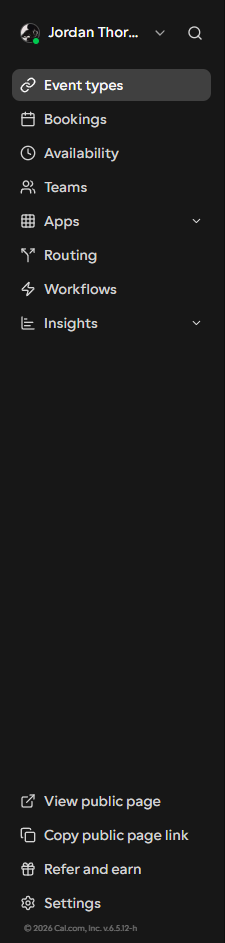
Click Settings at the bottom of the sidebar
Log in to Cal.com. In the left sidebar, scroll to the bottom and click Settings.
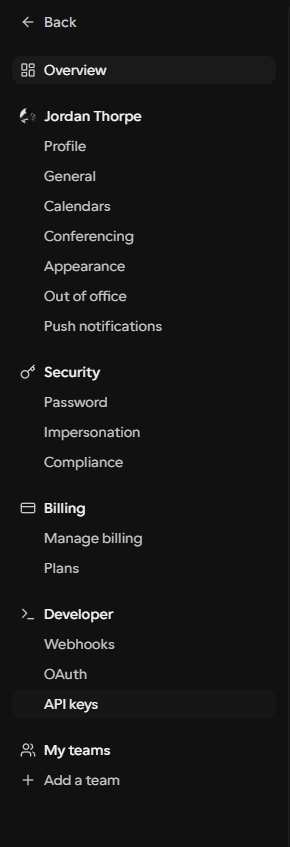
In the Settings panel, scroll down to Developer and click API keys. Or go directly to app.cal.com/settings/developer/api-keys.
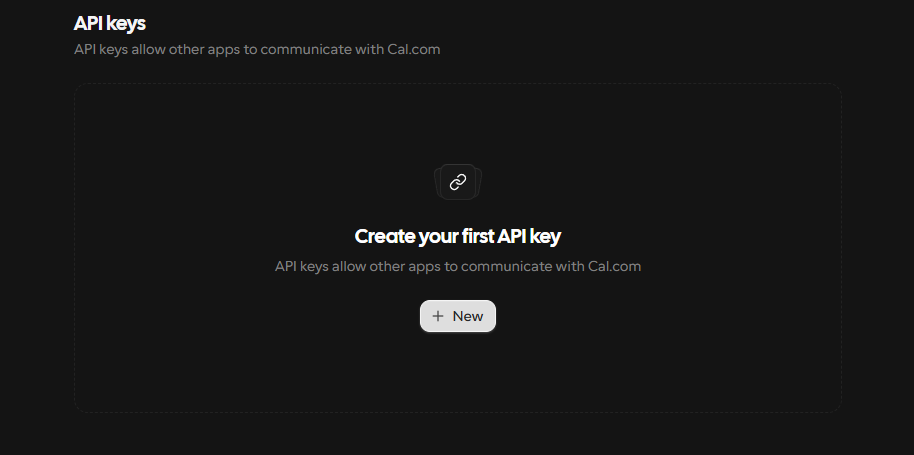
Click "+ New" to create a key
On the API Keys page, click + New. If you haven't made a key before it'll say "Create your first API key".
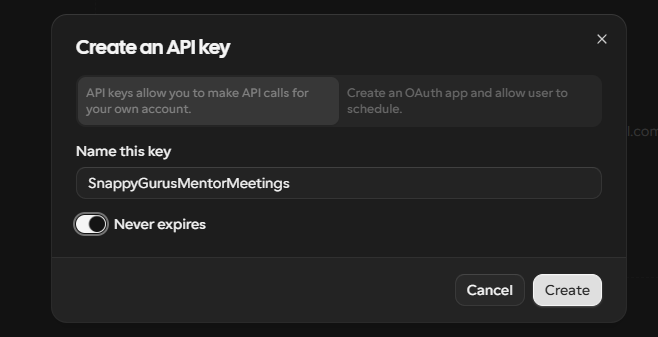
Name it and make sure "Never expires" is on
Give the key a name like SnappyGurusMentorMeetings. Toggle Never expires on, then click Create.
Copy the key immediately - it's only shown once
Cal.com shows your key just this once. Copy it now and paste it into the field above. If you miss it you'll need to create a new one.
Also make sure your Calendar URL in the Socials section is set to your Cal.com booking link (e.g. https://cal.com/your-name/30min).
Favourite Days
Which days are you generally available? Students will be shown slots on these days first.
Favourite Times
These are the recommended times shown to students - pick the hours you're most likely to be free.
Publish your profile?
This will make your profile live on the Snappy Gurus website for the first time. It takes about 1 minute to appear - make sure you're happy with everything before continuing.
Student Credits
Credits your students currently hold for sessions with you.
No credits yet
Students who buy sessions with you will appear here.
Add Credits by Email
Grant a credit to a student who doesn't have one yet.
When you get paid
Each session's payment releases to your bank the morning after the session takes place. Funds held in your Stripe balance until then.
No upcoming sessions
Confirmed sessions will appear here once students have paid.
No pending requests
When a student requests a session with you, it'll show up here.
For your awareness
Refund requests are reviewed and decided by the Snappy Gurus team. You don't need to take any action - this page is just so you can see what's been submitted and how it was resolved.
Loading refund activity...
No refund requests on record.